What are you setting up?
Select your product for tailored setup instructions.
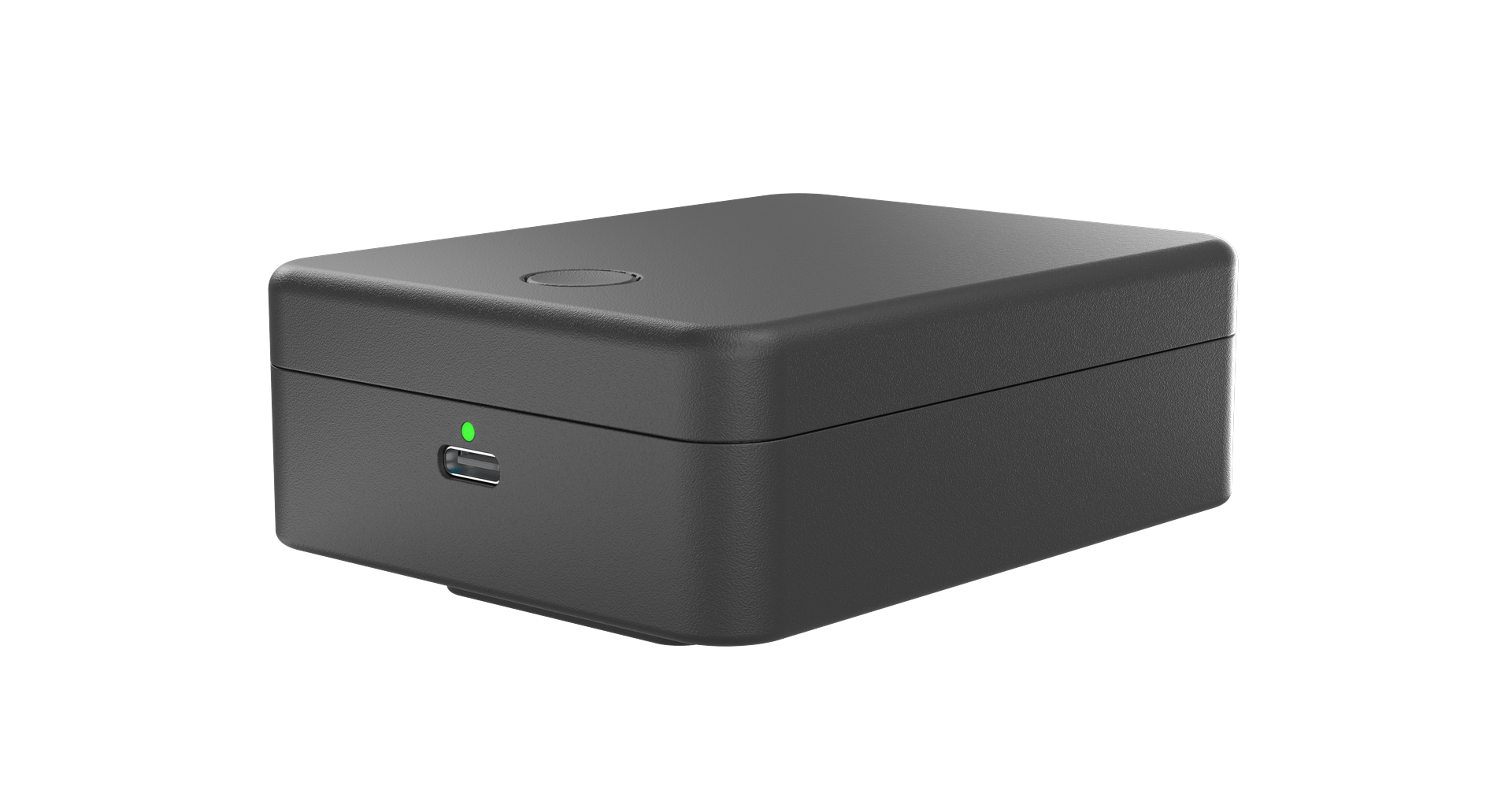
Setting Up Your Canaro
Get monitoring up and running in less than 5 minutes with these simple steps.
Unpack Your Device
Your Canaro package should include:
- Canaro device
- Power adapter (USB-C)
- Quick start guide
- Activation code
- Wall mount
Three Simple Steps
The only thing you need to do on-site is plug it in. Activation and everything else can be done from anywhere in the world.
Plug In at Your Property
This is the only on-site step. Plug the power adapter into any standard outlet and connect it to your Canaro. Wait for the LED to glow white (~30 seconds).
Activate from Anywhere
You don't need to be at your property for this. Visit the activation page from any device and follow the instructions to activate your Canaro.
canaro.ca/activateYou're All Set
Your Canaro will automatically connect and begin monitoring. You'll start receiving alerts within minutes; no matter where you are.
Having Issues?
Device Not Turning On
- Verify power cord is firmly connected to both device and wall outlet
- Check bottom vent for flashing lights
- Green flashing light indicates cellular connection attempt (wait up to 15 minutes)
- Try relocating device for better reception
Login Issues
Check your email from when you purchased the device; your login credentials were sent there. If you can't find them, contact support for assistance.
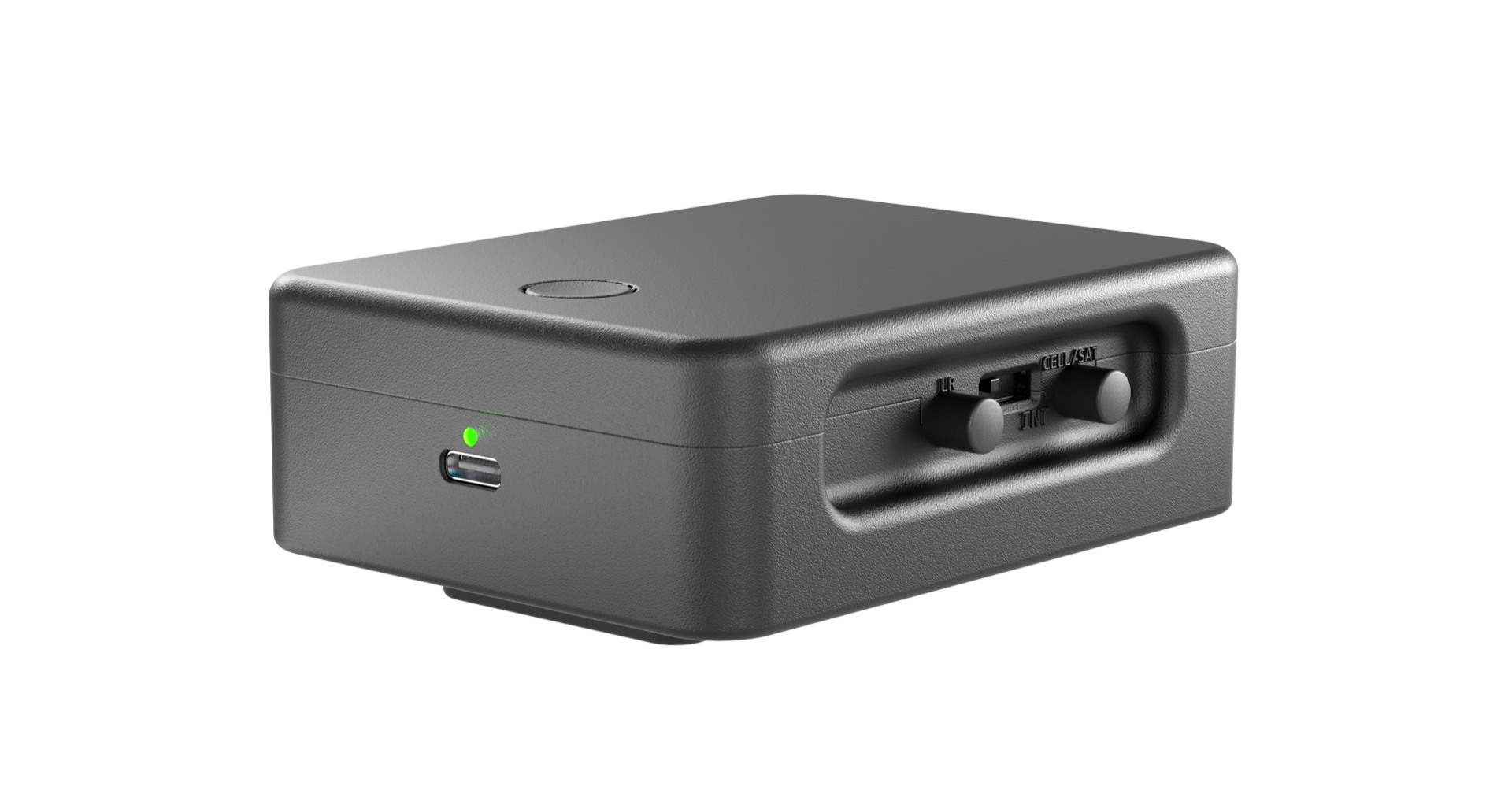
Setting Up Your Canaro Hub Pro
Set up your Pro device with WiFi, cellular, and satellite failover in just a few minutes.
Unpack Your Pro Device
Your Canaro Hub Pro package should include:
- Canaro Hub Pro device
- Power adapter (USB-C)
- Quick start guide
- Activation code
- Wall mount
- External satellite antenna
- Add-on antenna
Four Simple Steps
The only thing you need to do on-site is plug it in. Antenna setup is optional depending on your connectivity needs. Activation can be done from anywhere.
Plug In at Your Property
Plug the power adapter into any standard outlet and connect it to your Canaro Hub Pro. Wait for the LED to glow white (~30 seconds).
Attach Antennas Optional
Only needed if using Satellite or Long-Range Add-Ons. For the external satellite antenna, place it outdoors with a clear view of the sky and switch the selector on your device to EXT. For an add-on antenna, simply attach it to the port on the back of your device.
Build a mount for the antennaActivate from Anywhere
You don't need to be at your property for this. Visit the activation page from any device and follow the instructions to activate your Canaro Hub Pro.
canaro.ca/activateYou're All Set
Your Canaro Hub Pro will connect via WiFi, cellular, and satellite. Automatic failover ensures you're always connected; no matter where you are.
Set Up Over the Local Hotspot
If you're activating somewhere with no cellular coverage, your Canaro Hub Pro hosts its own setup hotspot. Connect to it from your phone to get satellite online or enter WiFi credentials; no internet required.
Wake the Hotspot
Tap the top button on your Canaro Hub Pro three times in quick succession. This starts its built-in setup hotspot.
Connect From Your Phone
Join the WiFi network named Canaro-Setup- followed by six letters and numbers, such as Canaro-Setup-4F2A9C. The password is the activation code included with your device.
Follow the Setup Portal
A setup page opens automatically. From here you can connect satellite or enter your home WiFi credentials, then follow the on-screen instructions.
Satellite Needs an Approximate Location
To use satellite, you'll provide a rough location so the device can find the right satellites. It doesn't need to be exact; any of these work:
- Take the Canaro Hub Pro outside with a clear view of the sky and follow the portal's instructions
- Enter coordinates directly
- Use your phone's location
Having Issues?
Device Not Turning On
- Verify power cord is firmly connected to both device and wall outlet
- Check bottom vent for flashing lights
- Green flashing light indicates cellular connection attempt (wait up to 15 minutes)
- Try relocating device for better reception
Satellite Not Connecting
- Ensure external antenna is securely connected to the device
- Verify antenna has a clear, unobstructed view of the sky
- Move antenna away from metal roofing or large metal objects
- Allow up to 10 minutes for initial satellite acquisition
Login Issues
Check your email from when you purchased the device; your login credentials were sent there. If you can't find them, contact support for assistance.
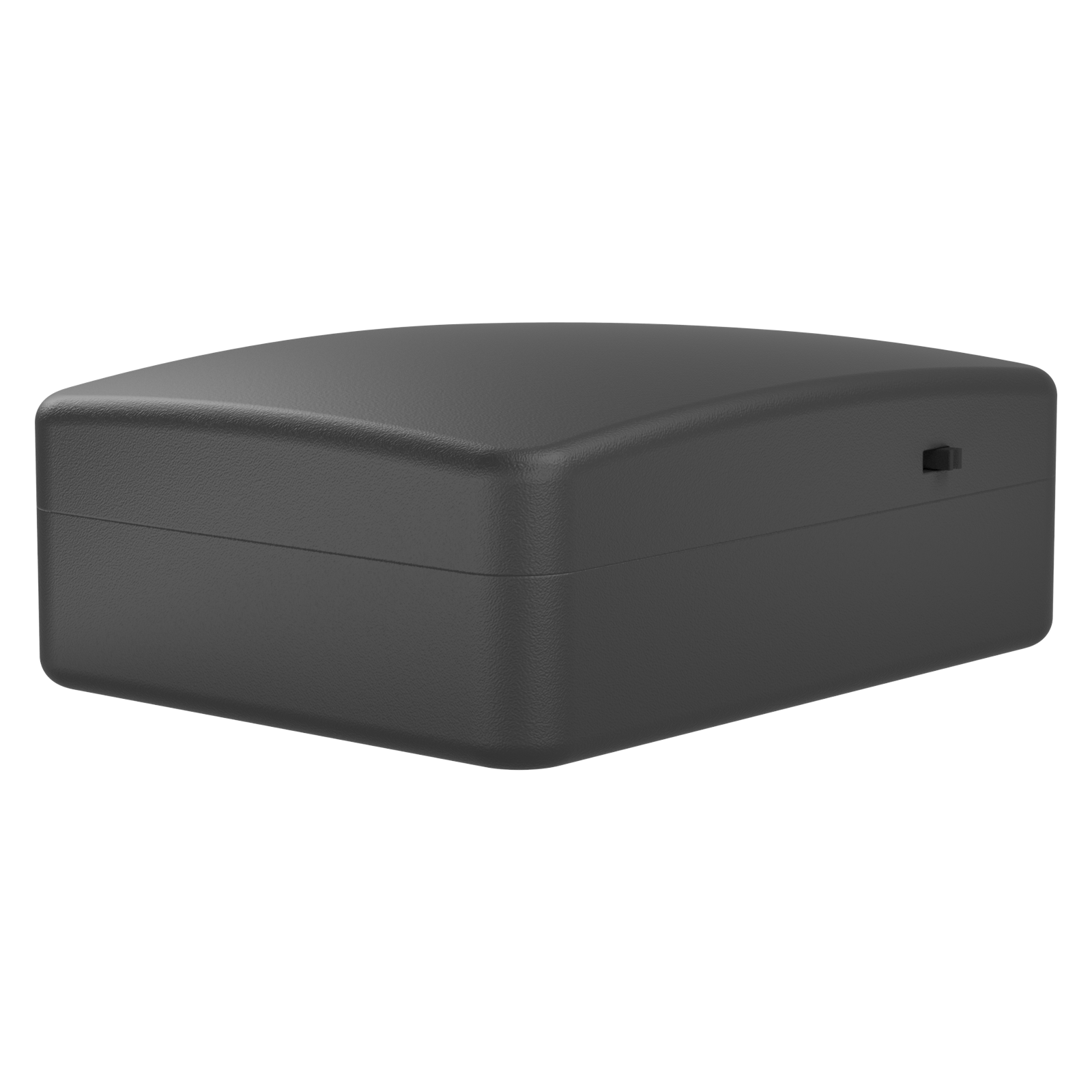
Setting Up Your Add-On Sensor
Pair new sensors to your Canaro and expand your monitoring coverage in minutes.
Unpack Your Sensor
Your Add-On Sensor package should include:
- Add-on sensor
- Batteries (if wireless model)
- Wall mount
- Quick reference card
Three Simple Steps
Add-on sensors pair wirelessly with your Canaro. No tools required.
Prepare
Insert the included batteries or connect the power cable. The sensor LED will blink briefly to confirm power.
Pair
Open your Canaro dashboard, click "Add Device", and enter the activation code. Assign its parent hub and it starts working right away.
Mount & Verify
Place the sensor in your desired location and use the dashboard to verify signal strength and readings.
Having Issues?
Sensor Not Discovered
- Confirm batteries are inserted correctly or power cable is connected
- Bring the sensor closer to your Canaro base device
- Ensure you haven't exceeded your account plan's Add-On limit (3 on Standard, 12 on Advanced, up to 30 on Enterprise)
- Restart your Canaro base device and try again
Readings Seem Off
- Avoid placing sensors near heat sources, vents, or direct sunlight
- Allow 10–15 minutes for readings to stabilize after placement
- Check dashboard for firmware update notifications
- Ensure sensor is within wireless range of your base device